The Traffic Summary window is accessed from COMPASS's Campaign Information window by clicking the Traffic Summary  button on the tool bar. The Traffic Summary displays all media in the campaign, providing an instant "snapshot" of the traffic information for each as they are selected.
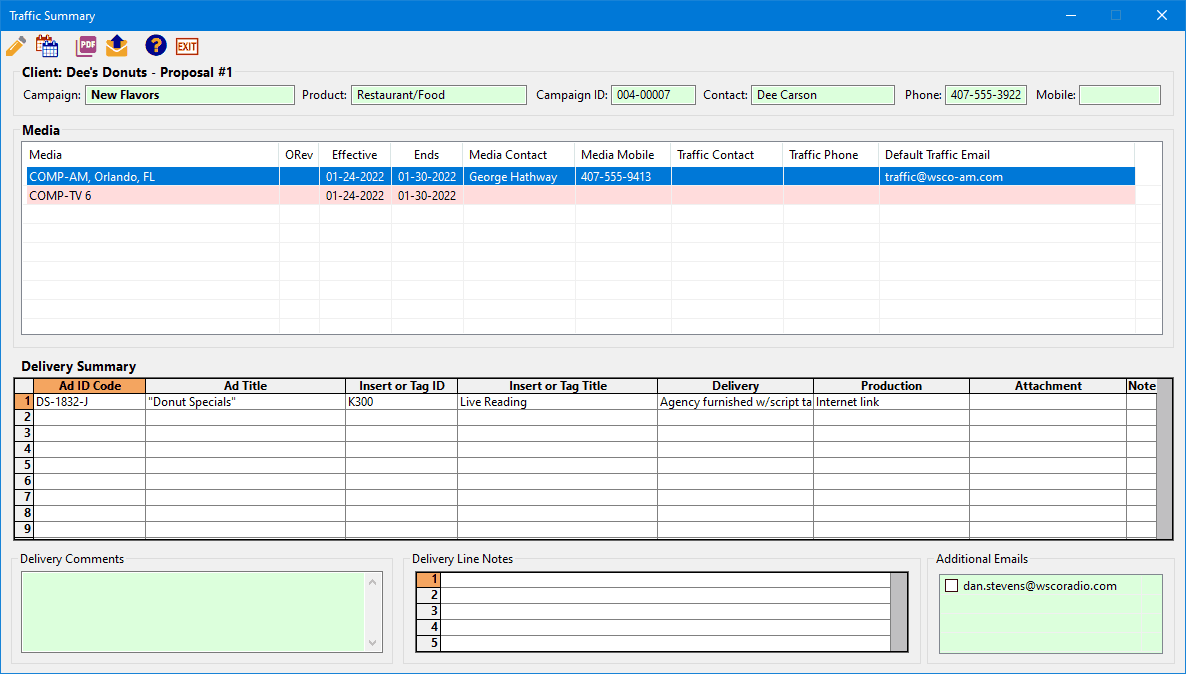
Traffic Summary
Left clicking one of the media in the list selects it and displays the Delivery Summary of the traffic for that media in the bottom section of the window. Double click the media or click the Edit  button to open Traffic Instructions to edit, if desired. Note that if a media is selected (highlighted by clicking with the mouse) in the Campaign Information window, that media will be preselected in the Traffic Summary list.
With the media selected, click the PDF  or Email
  buttons to print or email the traffic. Schedules that are proposals — not yet converted to orders — appear with a pink background and cannot be selected for emailing.
With any single media highlighted in the list, right click it to open the Media Information window where any of the media's settings can be edited.
When the PDF or Email button is clicked, a window will indicating in what location the generated PDF will be stored. This directory can be changed to any drive and path desired by clicking the Change button. Each client and media can have its own discreet directory path, which will remain in place until changed by the user. If the Shift key is depressed when either button is clicked, the generated PDF will be saved to the default directory C:\Program Data\COMPASS\PDF\.
Bulk Operations
The Traffic Summary window supports the selection and printing or emailing of multiple traffic instructions. Use Shift and Control to select the desired media from the list, then click the PDF  or Email button. For PDF, each traffic instruction will open in a new tab on your PDF application. For emails, COMPASS will cycle through each selection, opening the specified email application and loading all instructions and optional files as attachments. If COMPASS Mail is used with its Template Editor, all that is required is to click the Send button.
When either button is clicked, a window will be displayed for each traffic instruction in turn, indicating in what location that generated PDF will be stored. This directory can be changed to any drive and path desired by clicking the Change button. Each client and media can have its own discreet directory path, which will remain in place until changed by the user. If the Shift key is depressed before either button is clicked, the generated PDF will be saved to the default directory C:\Program Data\COMPASS\PDF\.
If a media assigned as a proposal is selected as part of the bulk email operation, COMPASS will alert you that the email cannot be sent and ask if you want to abort the bulk email process. Answer "No" to continue the bulk email with the next media selected. Otherwise, click "Yes" to interrupt the process.